Add a border to any coloring page with frame

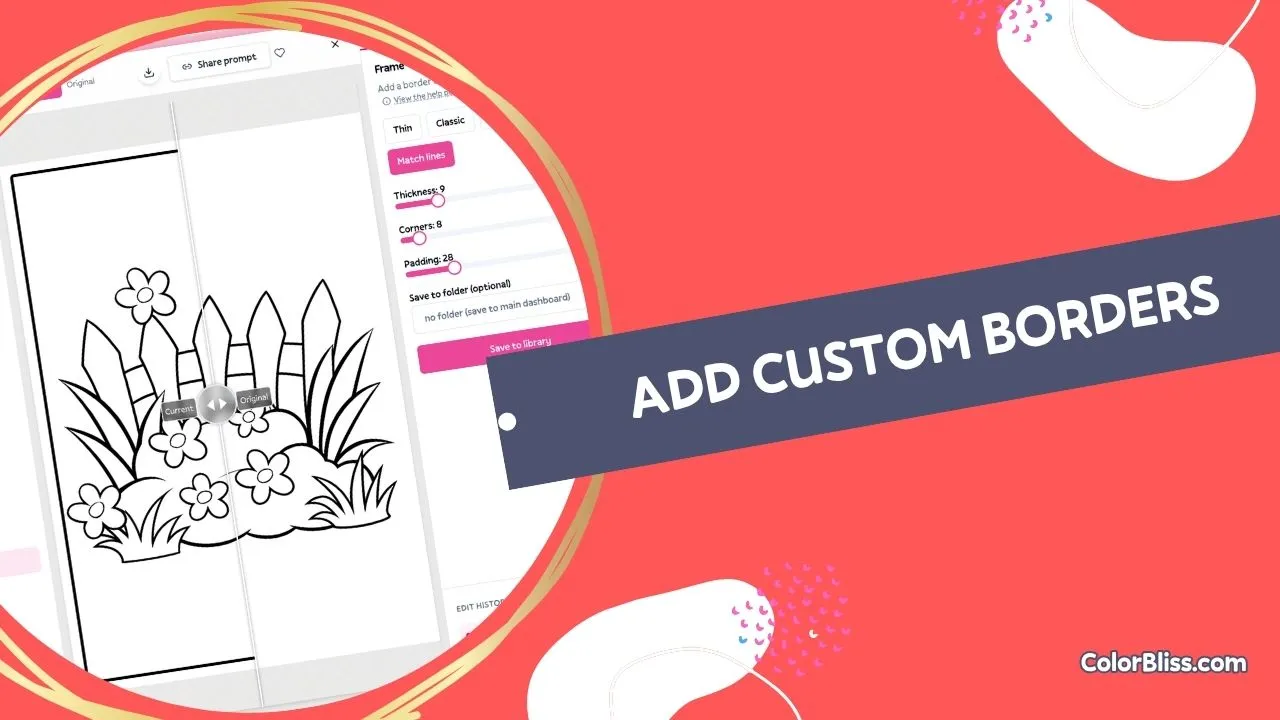
A border can make the difference between a page that looks finished and one that looks accidentally cropped. Frame adds that border without sending you to another app.
Jon H. suggested this feature. He wanted a simple way to put a border around a page, and that was worth building. Thanks, Jon!
You will find Frame under Add in the edit panel. Choose a preset or make your own, then save when the preview looks right.
Why add a frame?
Before Frame, adding a border meant exporting the page and opening Canva or Photoshop. One line should not require another app.
Frame draws the border in your browser. It adds space around the art rather than drawing over it, so none of the original page gets covered.
When you save, the original stays in your library. Frame creates a separate copy.
How it works
- Open any page in your library and click Edit
- Pick frame under Add in the sidebar
- Choose a preset or move the sliders until the preview looks right
- Hit Save to library
The framed copy appears in your library, ready to download or print.
What you can do
Thin, Classic, Bold, and Rounded give you four places to start. Classic works for most pages. Bold adds a heavier line and more white space. Rounded replaces sharp corners with curves.
Match lines measures the strokes in your page and uses a similar thickness for the border. It helps the new line look like part of the original drawing.
If a preset is close but not quite right, use the sliders. Thickness changes the border itself. Corners controls the curve, and Padding controls the white space around the art.
The preview updates as you go. Wait for it to catch up before you save.
Who it’s for
Frame is useful when you want the same border on every page of a coloring book before you export the PDF.
It also saves a trip to another app when one printable page needs a border.
Credits and plans
Frame is free and uses zero credits.
Every plan includes it, including free accounts.
Try it
Open your ColorBliss library, choose a page, then go to Edit → Add → Frame.
Pick a preset and adjust it if needed. Save the result, then download it from your library.