Save your own custom style and reuse it anytime

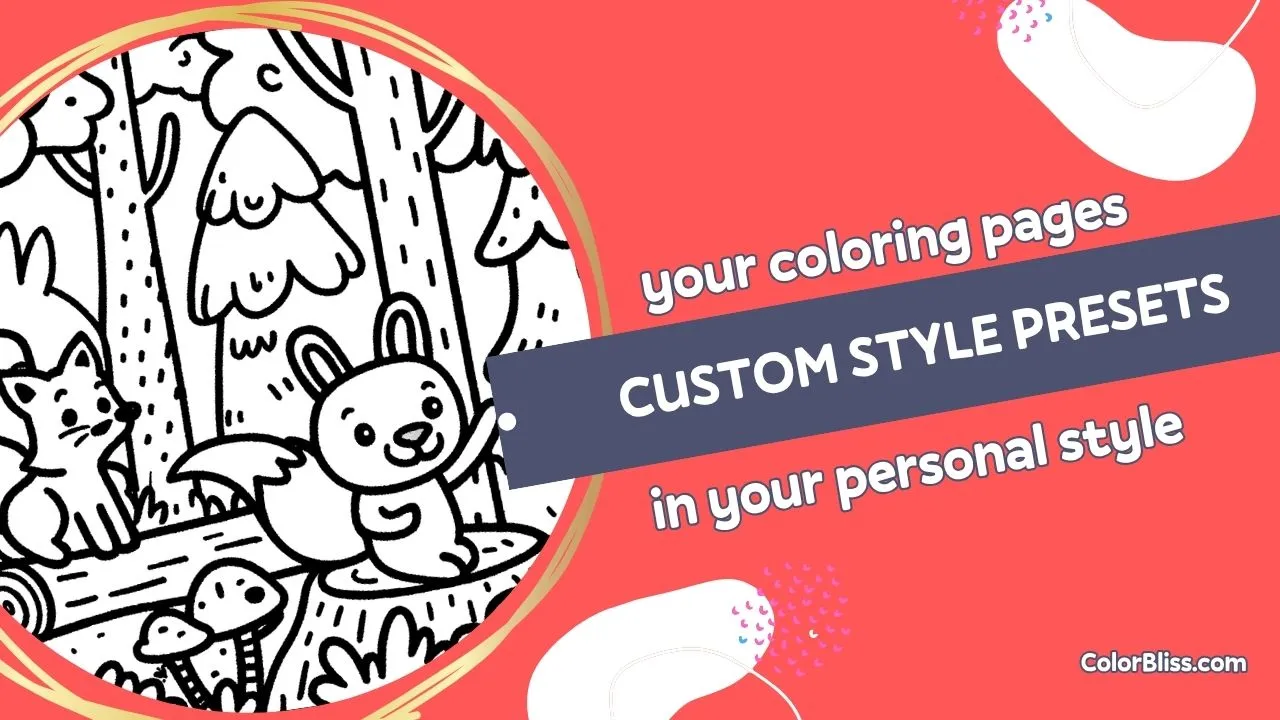
Custom styles are here. If you have a look you love and want to keep using, you can now save it once and bring it back whenever you generate a new page.
This works in both text prompts and word art. Upload a style image, let ColorBliss analyze it, save it privately to your account, and it will show up right in your style picker.
Why this matters
Before this, getting a consistent look meant repeating the same style phrases in every prompt and crossing your fingers. No more rebuilding your favorite look from scratch every time you create a page.
Now you can save the style once and reuse it across different ideas, themes, and text. That makes it much easier to build a series, keep worksheets visually consistent, or create cleaner personalized products.
How it works
- Open the generator: go to the text prompt or word art generator in your dashboard
- Click the plus button: find it next to the Style dropdown, then upload a JPG, PNG, or WebP reference image that is 4 MB or smaller
- Review and save: let ColorBliss check the image, then keep the suggested style name or edit it before saving
- Pick it and generate: select your saved style from the Style dropdown and create your page in default or high quality
What’s included
Private styles for your account
Every custom style is private to your account. Your uploaded reference image and saved style do not get exposed as a public style for other users.
Works in text prompts and word art
You can use the same saved style whether you are generating a scene from a prompt or turning words into a coloring page design.
Smarter style setup
When you upload an image, ColorBliss analyzes it first and suggests a style name based on the visual look. That gives you a faster starting point and helps keep your saved styles organized.
Better reuse across projects
Once a style is saved, it appears in your style dropdown so you can come back to it anytime. No more digging through old prompts trying to remember how you got a look you liked.
Perfect for
- Creators building a coloring book series with a consistent visual feel
- Teachers making worksheets that should all look like the same set
- Parents who found a style their kids love and want to keep using
- Etsy and printable sellers who want more visual consistency across products
- Anyone who is tired of retyping style instructions for every new idea
Credit usage
Custom styles use the same credit system as the generator you are already using. There is no separate style mode to learn. Your cost still follows the normal generator and quality setting you choose.
For example, if you use a custom style in high quality, the generation uses the normal high quality credit cost. If you use it in default quality, the generation follows the normal default quality pricing for that run.
Availability
Custom style creation is available on Artist, Business, and Ultra plans. The feature is currently available in the authenticated dashboard generators for text prompts and word art.
Getting started
Open your dashboard, start a text prompt or word art page, and click the plus button next to the Style dropdown to create your first custom style.
If you want a quick place to start, try text prompts or word art.
Questions?
Read the custom styles guide or email [email protected] if you need a hand.
Have fun making your pages look more like your pages.
Ben