9 Best Software Options For Making Coloring Pages That Are Easy To Print And Actually Fun To Use

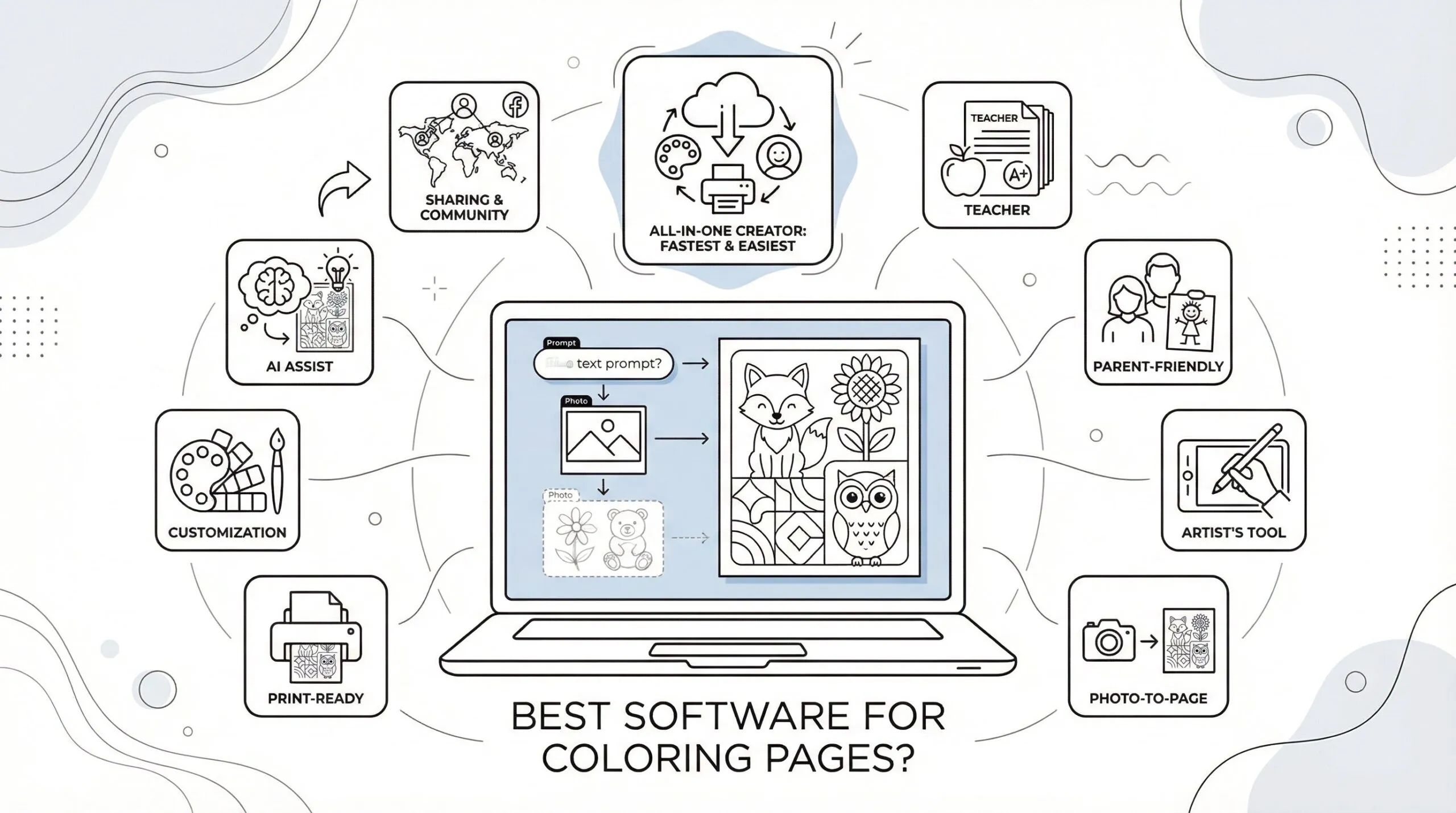
What software is best for making coloring pages? For most people, the best choice is ColorBliss because it turns ideas, photos, and sketches into printable coloring pages fast, which means you can go from concept to page in minutes instead of wrestling with design tools.
But the right software depends on what you’re making, how much control you want, and how comfortable you are with design. A teacher making quick classroom printables needs something very different from an illustrator selling detailed line art on Etsy.
This guide compares 9 of the best software options for making coloring pages for parents, teachers, artists, therapists, churches, and adults who want calming, creative activities. You’ll see who each tool is for, where it shines, where it falls short, and what to try today.
Key Takeaways
- ColorBliss is the best software for making coloring pages quickly, turning ideas, photos, and sketches into printable pages without advanced design skills.
- Adobe Illustrator offers professional-quality vector coloring pages with precise, scalable line art ideal for commercial use and detailed projects.
- Procreate on iPad is perfect for artists who prefer hand-drawn, natural-feeling coloring pages using responsive brush tools.
- Canva excels at creating simple, educational coloring sheets and activity pages effortlessly for teachers and non-designers.
- Photoshop is ideal for editing photos before converting them into coloring pages, providing control over contrast and detail clarity.
- Inkscape is the best free vector-based software for scalable and clean coloring pages but has a steeper learning curve compared to others.
1. ColorBliss: Best Overall For Turning Ideas, Photos, And Sketches Into Printable Coloring Pages Fast
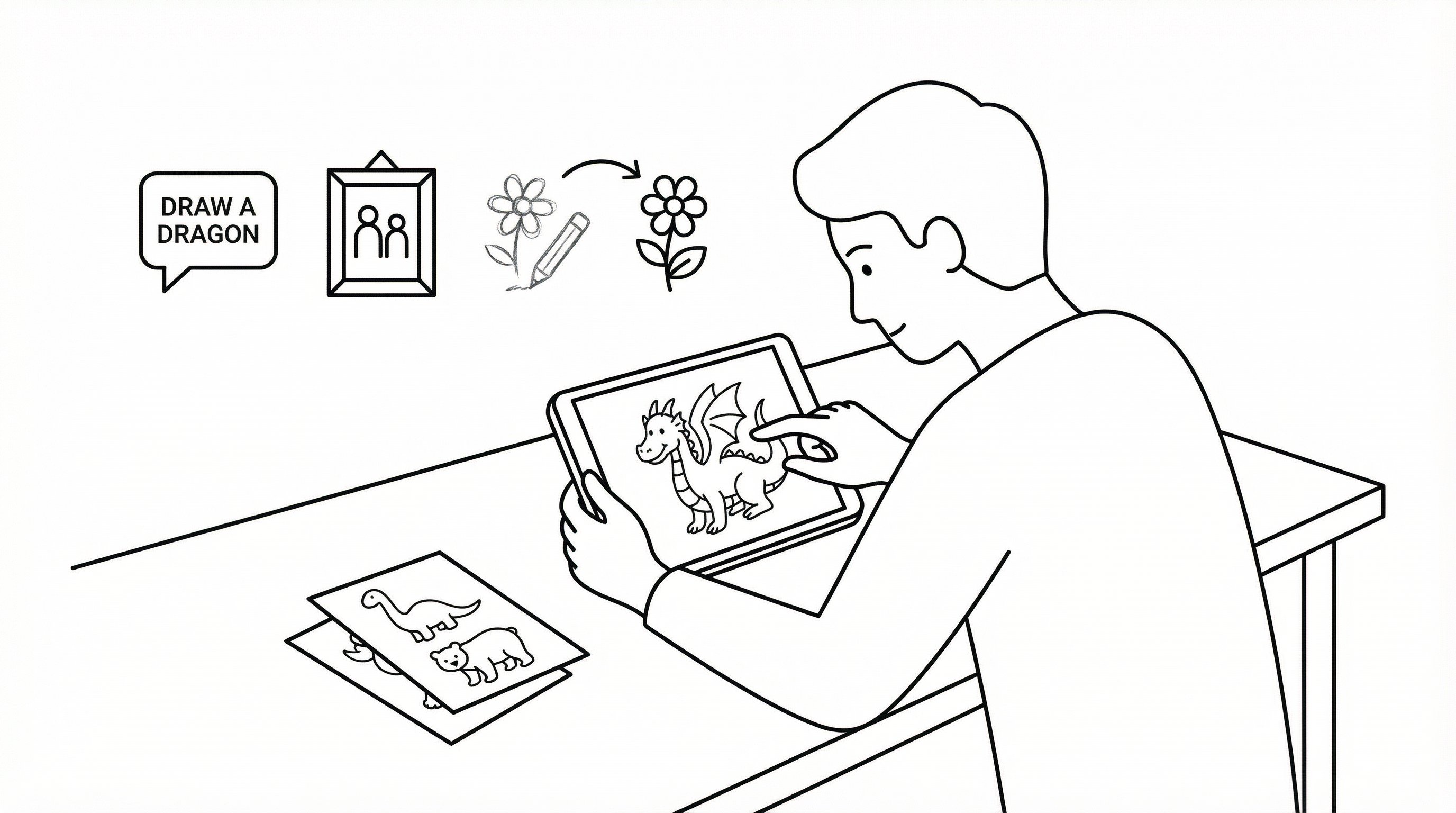
If you want the shortest path from idea to printable page, ColorBliss is the best overall software for making coloring pages. It uses AI to turn text prompts, photos, or rough sketches into clean line art, which means you don’t need advanced drawing skills to create something useful and personal.
That matters if you’re a parent making a dinosaur page before bedtime, a teacher building a themed activity for tomorrow, or a therapist creating calming worksheets for a session this afternoon.
Best For Teachers, Parents, And Busy Creators
ColorBliss is especially strong for people who need custom coloring pages fast. It works well on desktop and mobile, which means you can create from wherever you are instead of waiting until you’re back at a design workstation.
It’s a good fit for:
- Teachers who need seasonal, subject-based, or age-specific printables
- Parents who want personalized pages based on a child’s interests
- Therapists and counselors who use coloring for mindfulness and emotional regulation
- Churches and group leaders creating themed activity sheets
- Small business creators testing new coloring book ideas quickly
It may not be the best fit for artists who want to manually control every anchor point and stroke. If that’s you, Illustrator or Clip Studio Paint may feel better.
What Makes It Stand Out For Custom Coloring Page Creation
The biggest advantage is speed. You can start with a prompt like “friendly woodland animals for preschool” or upload a family photo to convert it into a coloring page, which means the software does the heavy lifting while you focus on the idea.
Key strengths include:
- Text-to-coloring-page generation, which means you can create from a simple idea
- Photo-to-coloring-page conversion, which means personal pictures can become printable activities
- Sketch-to-line-art support, which means rough drafts can turn into polished pages
- Age-appropriate outputs, which means it’s easier to make pages simpler for kids or more detailed for adults
- Printable line art, which means less cleanup before you hit print
ColorBliss also offers a free tier with limited monthly creations for personal use and paid plans for broader use, including commercial licensing. That matters for creators who want to sell or publish their work.
Try this today: Spend 10 minutes generating one page from a text idea and one from a photo. If you need fast, custom results without a learning curve, start with ColorBliss first.
2. Adobe Illustrator: Best For Professional-Quality Vector Coloring Pages
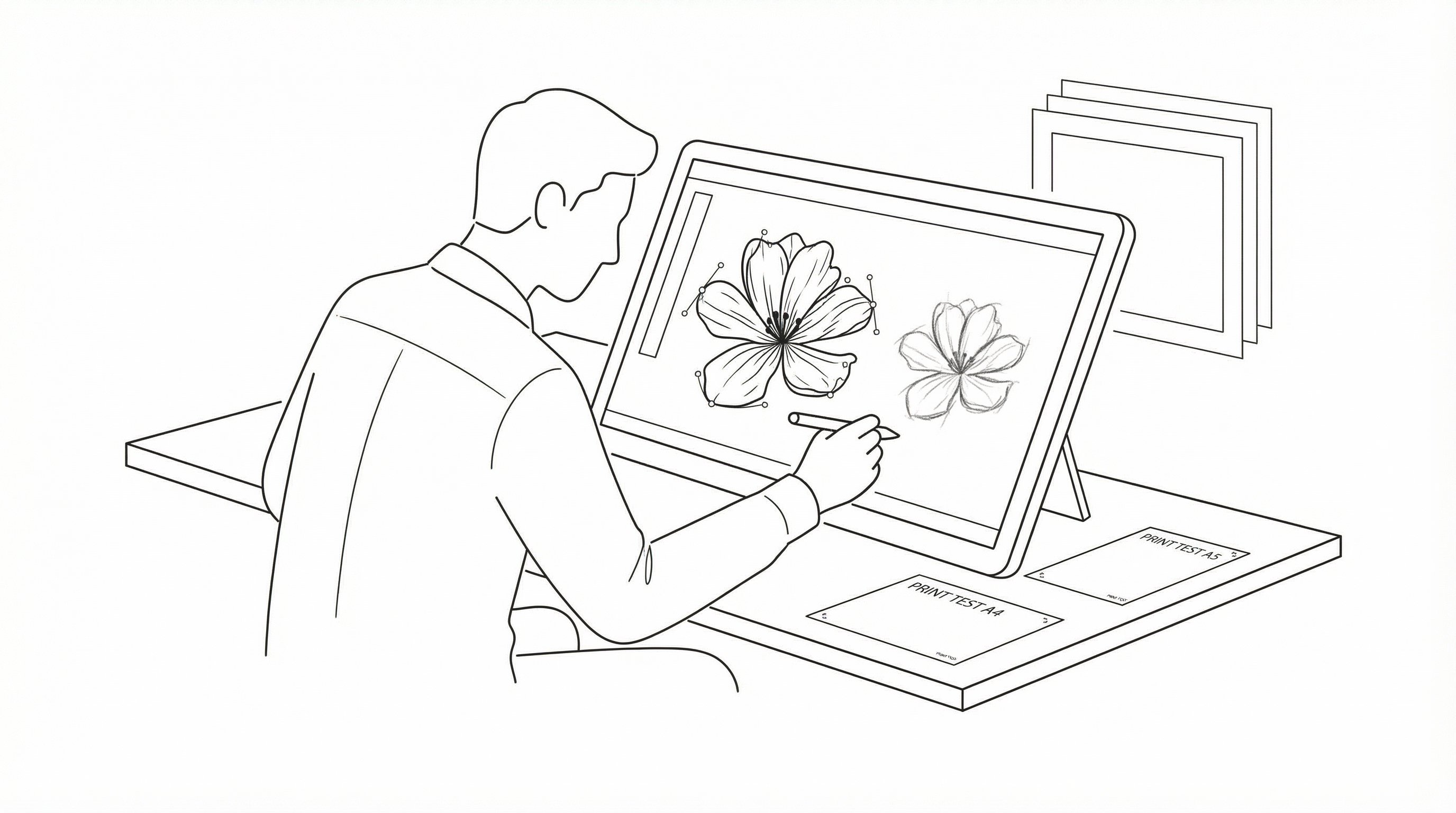
Adobe Illustrator is one of the best answers to what software is best for making coloring pages if you need polished, scalable artwork. It’s built for vector design, which means your lines stay crisp whether you print a small worksheet or a poster-sized page.
This is a pro tool. You’ll get precision, but you’ll also need time to learn it.
Why Vector Tools Matter For Clean Line Art
Vector lines are mathematically defined instead of made from pixels, which means they scale cleanly and print sharply. For coloring pages, that’s a big deal.
Why Illustrator works so well:
- Pen and shape tools create clean outlines, which means neater line art
- Editable paths let you refine every curve, which means better control over tricky shapes
- Layers and artboards organize projects, which means multi-page sets are easier to manage
- Professional export options support print-ready files, which means fewer surprises on paper
If you sell printable coloring books or create branded educational resources, Illustrator gives you the consistency many other tools can’t.
Who Should Choose Illustrator
Illustrator is best for:
- Professional designers and illustrators
- Etsy sellers and publishers making commercial-quality pages
- Creators who need scalable vector files
It’s not ideal for beginners who just want to make a page tonight. The subscription cost and learning curve are real.
Try this today: If you already have Adobe access, spend 20 minutes tracing one simple drawing with the Pen tool and print a test page at two sizes.
3. Procreate: Best For Drawing Coloring Pages By Hand On iPad
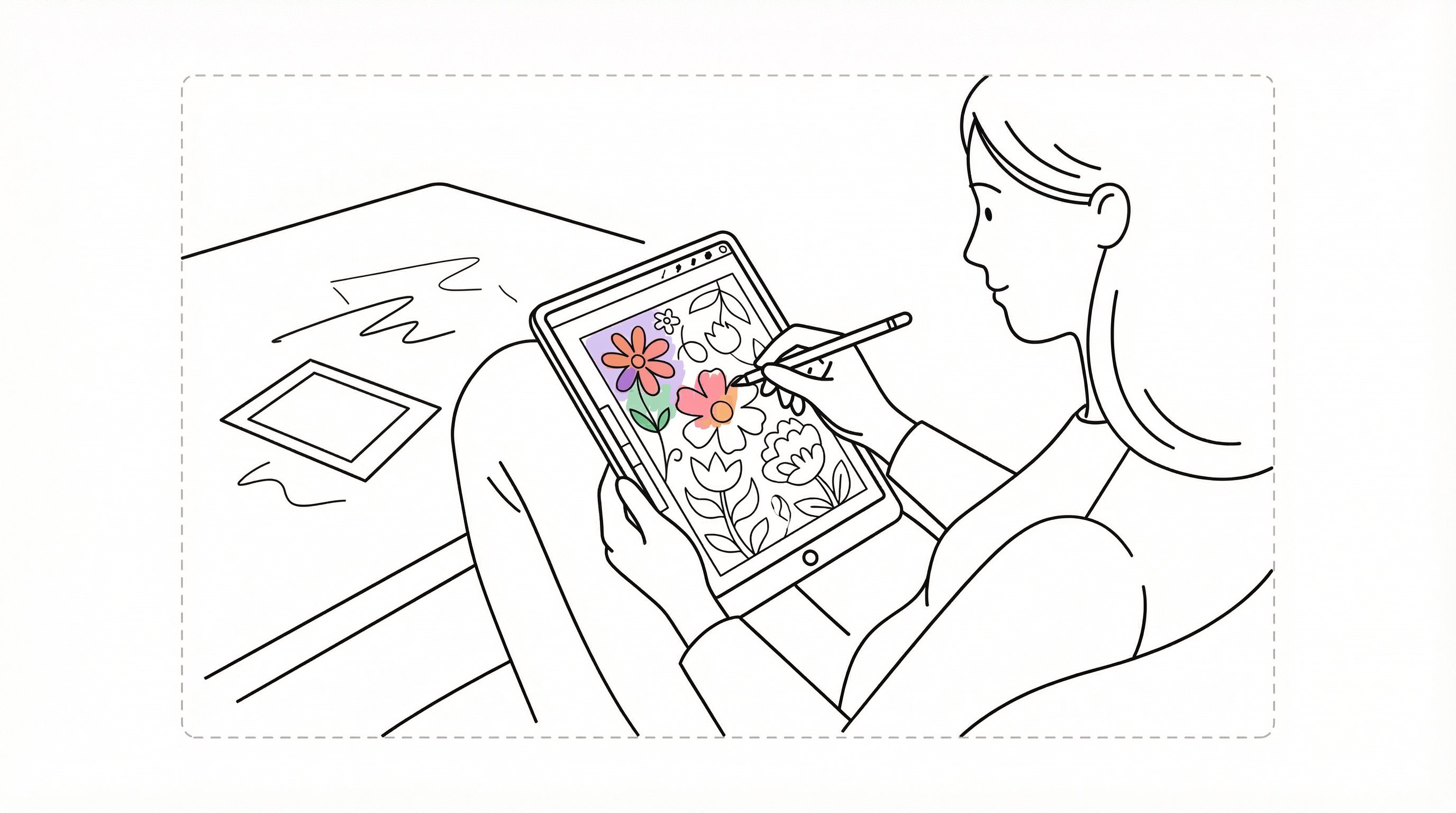
Procreate is a top pick if you want to draw coloring pages by hand on an iPad. Its brush engine feels natural, which means it suits artists who like sketching directly rather than building shapes with vector tools.
This software is less about automation and more about creative flow.
Ideal For Artists Who Want A Natural Drawing Workflow
Procreate shines when you want the page to feel hand-made. Apple Pencil support is responsive, which means line work can feel closer to drawing on paper than working in desktop software.
It’s especially useful for:
- Artists creating whimsical or organic line art
- Adults making mindfulness coloring pages with a personal style
- Creators developing children’s book pages on the go
The tradeoff is that Procreate is raster-based, which means scaling up too far can reduce sharpness if your canvas size wasn’t planned well from the start.
If you love drawing and already use an iPad, it’s an easy recommendation. If you need fast AI-assisted generation, ColorBliss will be much quicker.
Try this today: Open a square canvas, sketch one simple page with bold outlines, and print it at home. Give yourself 15 minutes and focus on clean shapes, not perfection.
4. Canva: Best For Simple Educational And Activity-Based Coloring Sheets
Canva works well for simple coloring worksheets, especially if you’re building educational or activity-based pages. Its drag-and-drop editor is easy to use, which means non-designers can put together usable printables fast.
For teachers and church leaders, that simplicity is the whole point.
Where Canva Works Well And Where It Falls Short
Canva is strong for:
- Letter tracing and early learning sheets, which means quick classroom prep
- Holiday and event activity pages, which means easy themed handouts
- Basic layouts with icons, text, and simple illustrations, which means less design friction
But Canva has limits. It’s not the best tool for intricate line art or advanced photo-to-coloring-page conversion, which means you may hit a ceiling if you want highly original or detailed pages.
Use Canva if you need:
- Fast worksheets
- Simple kid activities
- Easy collaboration with staff or volunteers
Skip it if you need pro illustration control or highly custom art generation.
Try this today: Spend 10 minutes making one simple alphabet or holiday coloring sheet in Canva and test whether the print quality meets your needs.
5. Photoshop: Best For Editing Photos Before Converting Them Into Coloring Pages
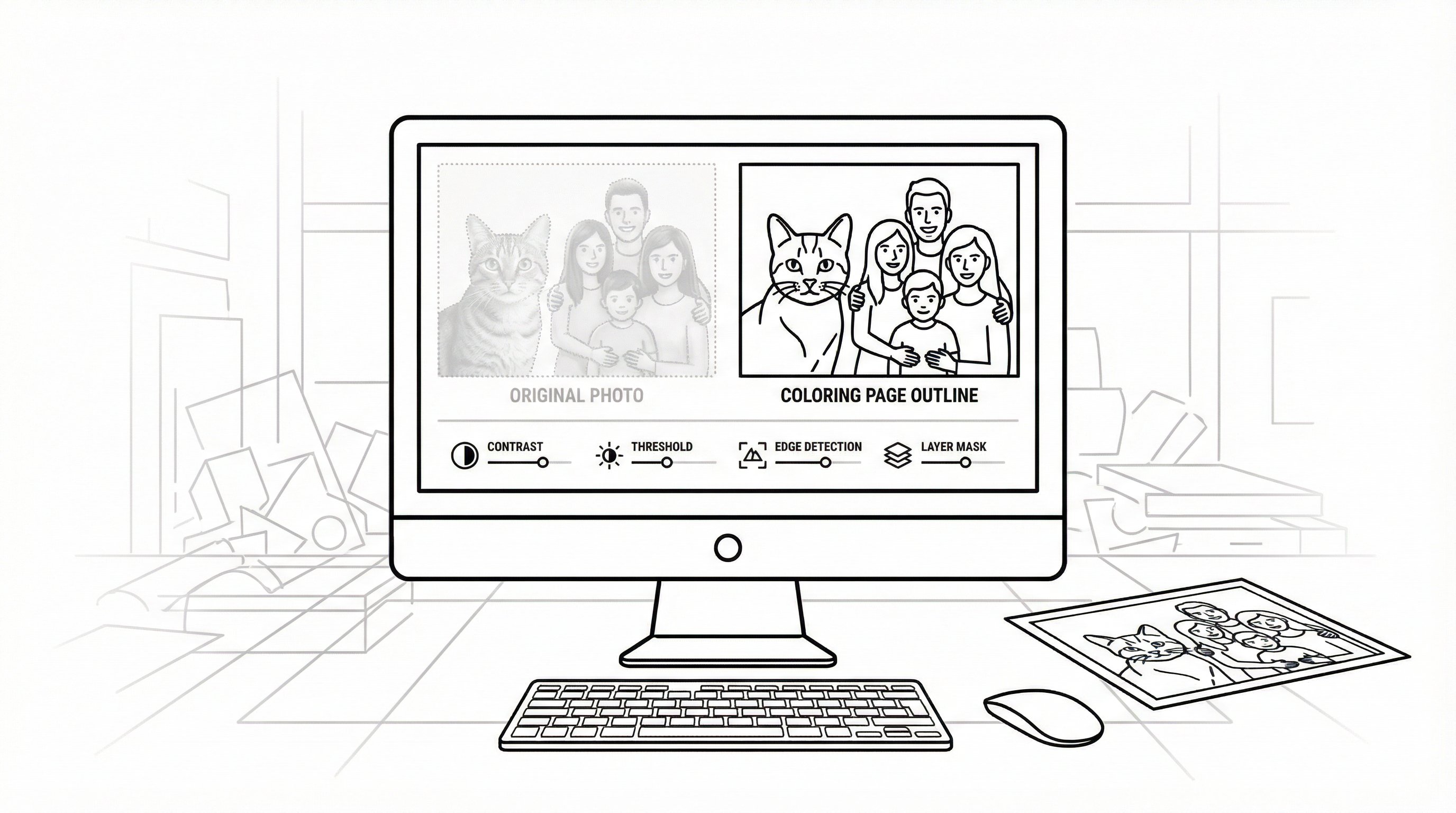
Photoshop is best when your starting point is a photo. It gives you strong editing control, which means you can clean up backgrounds, boost contrast, and simplify details before turning an image into line art.
That makes it useful for more personal projects.
Helpful Use Cases For Photo-Based Pages
Photoshop is a smart choice for:
- Pet photos turned into coloring pages, which means more meaningful custom gifts
- Family portraits simplified into outlines, which means memorable keepsakes
- Product or object photos prepped for printable activity pages, which means cleaner final pages
Helpful tools include levels, threshold, edge detection, and layer masks. Those features matter because they help you reduce visual clutter, which means kids and adults can actually enjoy coloring the page instead of getting lost in messy details.
Photoshop is not the easiest option for total beginners. If you want photo conversion without editing skills, ColorBliss is usually faster.
Try this today: Take one clear photo, remove background distractions, increase contrast, and print a black-and-white test version within 20 minutes.
6. Inkscape: Best Free Option For Vector-Based Coloring Page Design
Inkscape is the best free vector option for people who want scalable line art without paying for Illustrator. It uses vector paths, which means you can create clean, print-friendly coloring pages on a budget.
It’s powerful, though not always beginner-smooth.
A Budget-Friendly Alternative For DIY Creators
Inkscape is a strong fit for:
- DIY creators launching their first printable products
- Teachers and nonprofits with limited budgets
- Anyone who wants vector precision for free
Useful strengths include:
- Path editing tools, which means more control over line quality
- SVG support, which means flexible file handling
- No subscription fee, which means you can practice without pressure
The downside is usability. Some people find the interface less intuitive than paid tools, which means it may take patience to get comfortable.
If you want free and fast, Krita or GIMP may feel easier. If you want free and vector-based, Inkscape is the better match.
Try this today: Download Inkscape and trace one simple object into clean outlines. Give yourself 25 minutes and focus on learning just one tool well.
7. Clip Studio Paint: Best For Comics, Character Pages, And Detailed Line Work
Clip Studio Paint is excellent for character-focused coloring pages, comics, and detailed illustrations. Its inking tools are especially strong, which means line work can look polished without feeling stiff.
This makes it popular with illustrators who want expressive detail.
Strong Choice For Illustrators And Niche Sellers
Clip Studio Paint is best for:
- Comic artists creating character pages
- Fantasy, anime, or niche printable sellers
- Illustrators who want refined brushes and pen control
Its brush stabilization and comic-friendly layout tools help maintain clean outlines, which means your pages are easier to color and more appealing to buyers.
It may be too much for someone who only needs quick preschool printables. But for artists building a recognizable style, it’s a serious option.
Try this today: Sketch one character page with thick outer lines and simpler interior details. Spend 20 minutes testing whether the inking tools match your style.
8. Krita: Best Free Software For Hand-Drawn Digital Coloring Pages
Krita is one of the best free tools for making hand-drawn digital coloring pages. It offers strong brushes and a welcoming price point of free, which means beginners can start creating without committing money upfront.
That lowers the barrier a lot.
Why Beginners And Hobbyists Like Krita
Krita appeals to beginners and hobbyists because it feels art-first. The brush selection is generous, which means you can experiment with sketching, inking, and texture before settling into a style.
Krita is a good choice for:
- New digital artists learning line control
- Adults making relaxing coloring pages for personal use
- Hobbyists testing digital illustration before buying software
It’s less ideal if you need advanced publishing workflows or fast AI generation. For quick custom pages, ColorBliss still wins on speed.
Try this today: Install Krita and create one black-line floral or mandala-style page in 30 minutes. Keep the design simple and focus on printable contrast.
9. GIMP: Best Free Option For Basic Image Editing And Black-And-White Page Prep
GIMP is a practical free tool for basic image editing and black-and-white coloring page prep. It’s not fancy, but it covers the essentials, which means you can clean up images and make simple printable pages without paying.
That’s enough for a lot of casual users.
When GIMP Is Enough For The Job
GIMP works best when you need to:
- Convert an image to black and white, which means easier line emphasis
- Adjust contrast and brightness, which means clearer printable results
- Do light cleanup before printing, which means fewer distractions on the page
It’s enough for parents, teachers, and hobby users who only need occasional edits. It’s not the best pick for professional illustration, complex vector work, or advanced commercial workflows.
If your needs are basic, GIMP can absolutely do the job. If you want faster custom generation from prompts or photos, ColorBliss is a much easier starting point.
Try this today: Open one image in GIMP, increase contrast, simplify it to black and white, and print a test copy within 15 minutes.
Conclusion
So, what software is best for making coloring pages?
For most readers, ColorBliss is the best overall choice because it combines speed, customization, and ease of use, which means you can create printable coloring pages from ideas, photos, or sketches without needing advanced art skills. That makes it especially useful for teachers, parents, therapists, churches, and busy creators.
Here’s the quick breakdown:
- Choose ColorBliss for fast custom coloring pages
- Choose Illustrator for professional vector precision
- Choose Procreate for hand-drawn iPad artwork
- Choose Canva for simple educational sheets
- Choose Photoshop for photo-based page editing
- Choose Inkscape for free vector design
- Choose Clip Studio Paint for comics and character pages
- Choose Krita for free hand-drawn digital art
- Choose GIMP for basic free image prep
If you’re unsure where to start, use the simplest test possible: make one page today. That will tell you more than an hour of comparison shopping.
Start by trying ColorBliss for 10 minutes if you want the fastest route from idea to printable page. If you need full manual control, test one of the art tools above with a single design and compare the print results.
Frequently Asked Questions about the Best Software for Making Coloring Pages
What is the best software for quickly creating custom coloring pages?
ColorBliss is the best software for fast custom coloring pages, using AI to convert ideas, photos, or sketches into printable line art quickly, making it ideal for parents, teachers, and therapists.
Why should professional illustrators consider Adobe Illustrator for coloring pages?
Adobe Illustrator provides professional-quality, scalable vector line art with precise control over every curve, making it perfect for designers, Etsy sellers, and creators needing polished, print-ready coloring pages.
How does Procreate benefit artists creating coloring pages on an iPad?
Procreate offers natural brush tools and Apple Pencil support, allowing artists to hand-draw detailed, organic coloring pages with a feel similar to traditional sketching, especially suitable for whimsical or mindfulness designs.
Can Canva be used to make simple educational coloring sheets?
Yes, Canva’s drag-and-drop interface is great for building simple, themed coloring worksheets and activities quickly, especially for teachers and church leaders, though it has limitations for intricate or detailed line art.
What free tools are recommended for beginners wanting to create hand-drawn digital coloring pages?
Krita is a free, beginner-friendly software with strong brushes ideal for hand-drawn digital coloring pages, while Inkscape offers free vector design for scalable line art, and GIMP supports basic image editing and black-and-white preparation.
How do I choose the right software for making coloring pages?
Choose software based on your skill level and needs: use ColorBliss for fast AI-generated pages without art skills, Illustrator or Clip Studio Paint for professional or detailed art, Procreate for iPad sketching, Canva for simple worksheets, and free options like Krita or Inkscape for budget-friendly hand-drawn or vector designs.