Easily add text to your coloring pages

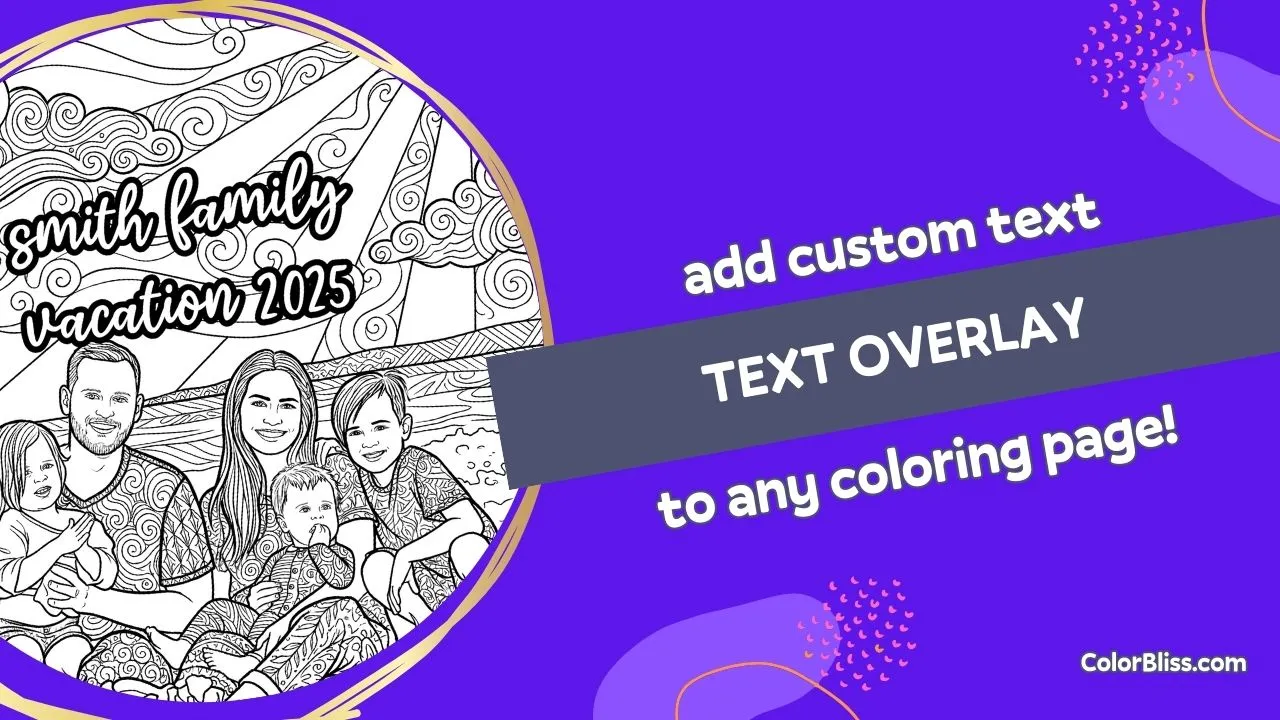
Ever wanted to add a name to a birthday coloring page? Or put a title on that custom creation? Now you can.
ColorBliss now allows you to add custom text to any coloring page, and it’s completely free to use. No credits required. You can add as much text as you want to any coloring page in your library.
How it works
Hover over any coloring page in your library, click on the “Edit” button and click the “Text Overlay” tab. From there:
- Click anywhere on the image to place a text box
- Type directly into the box
- Drag to reposition
- Resize by pulling the corners (the text scales with the box)
- Rotate using the slider in the sidebar
When you’re happy with it, hit save. The text gets baked into a new copy of your image, ready to download or print.
Video Demo
Fonts made for coloring
I picked fonts that actually work as coloring pages. Each one has thick, clear outlines with white interiors, so kids (or adults!) can color inside the letters just like the rest of the page.
Right now you’ve got four options:
- SuperFrog – playful and rounded
- LoftyGoals – elegant script style
- Octosale – bold and chunky
- Pally – friendly and approachable
Pick your font before adding text, or change it anytime while editing.
Some ideas to get you started
Birthday pages
Add the birthday kid’s name right on the page. “Happy 7th Birthday Emma!” hits different when it’s part of a coloring sheet they can actually color.
Educational worksheets
Teachers, this one’s for you. Add vocabulary words, student names, or instructions directly onto coloring activities.
Personalized gifts
Creating a custom coloring book for someone? Add their name to the cover page or personalized messages throughout.
Seasonal decorations
“Merry Christmas” on a holiday scene, “Happy Easter” on a bunny page. You get the idea.
Multiple text boxes
Need more than one piece of text? Just click again to add another box. Each one can have its own font, size, and rotation. Layer them however you want.
It’s free
Seriously. Text overlay doesn’t use any credits. Add text to as many pages as you want. I built this because personalization makes coloring pages way more special, and I didn’t want that behind a paywall.
Try it now
Open any image from your dashboard, click the edit button, and switch to the “Text” tab. Play around with it. I think you’ll find it surprisingly satisfying to see your custom text rendered in those chunky, colorable outlines.
If you have ideas for additional fonts or features, hit me up through the feedback button. I’m always looking for ways to make this more useful.
Happy coloring!